Glucose you can see
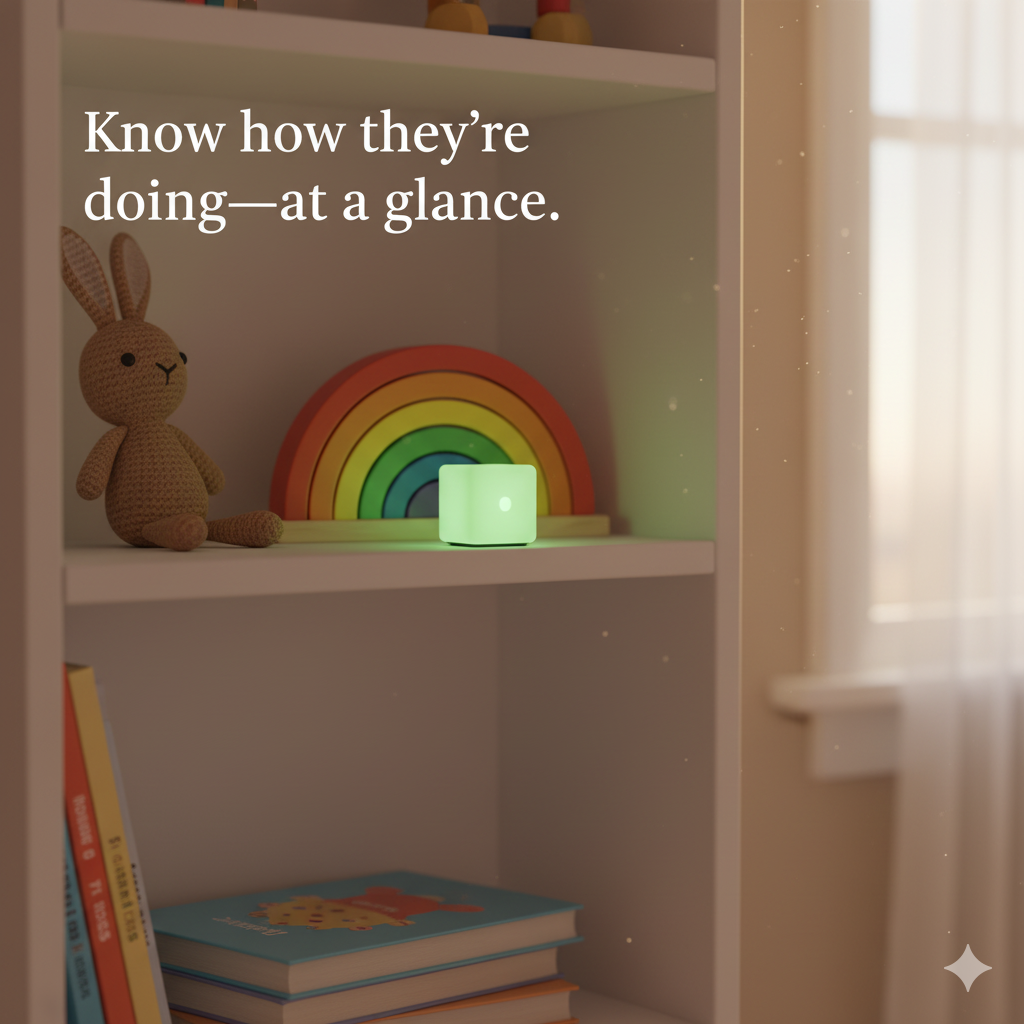
Know how they're doing — at a glance.
Sugar Cube glows the color of your glucose. It reads your Dexcom or Libre and lights up across the room, so a look from the doorway tells you everything. No phone. No app. Just color.
Every reading, a color
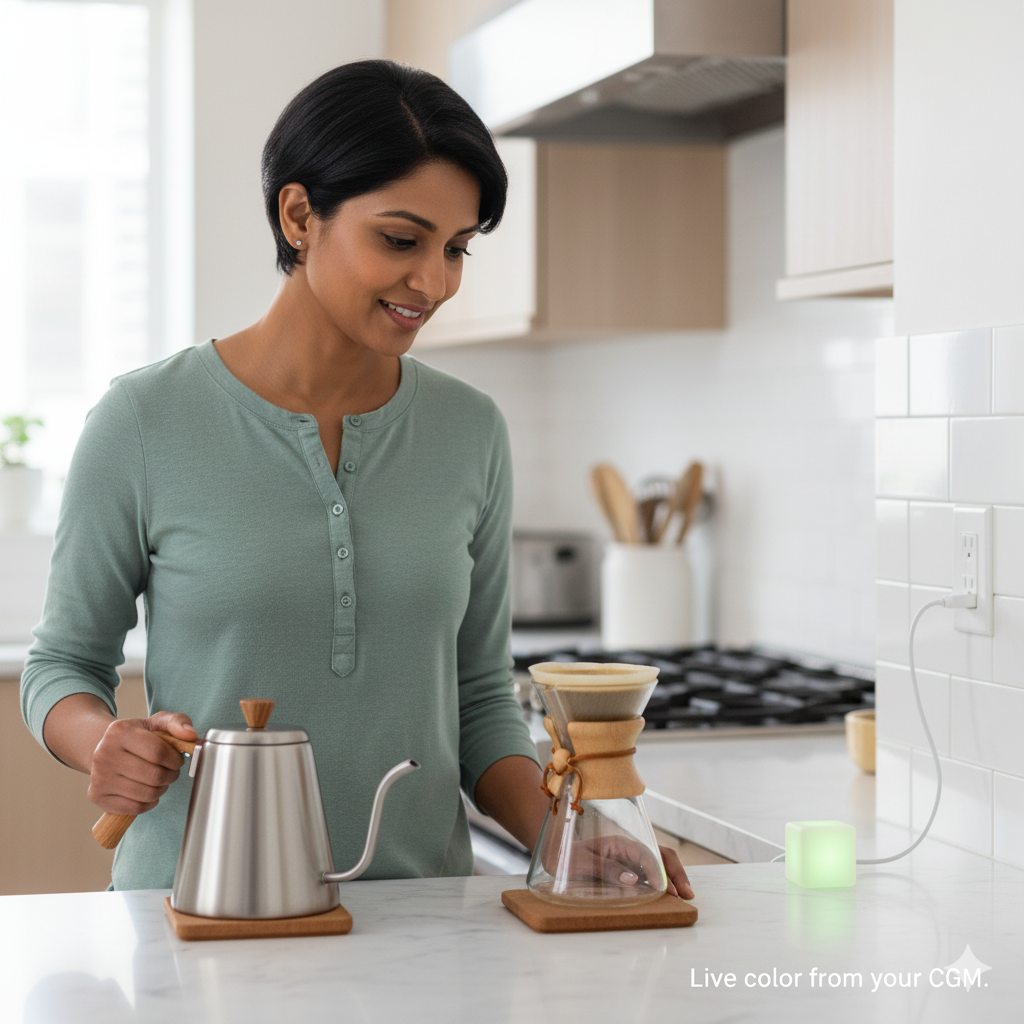
Live color from your CGM.
From low to very high, one calm light tells the whole story. Green means you're right where you want to be.
The glow, decoded
One color tells the whole story.
Sugar Cube pulls your reading every few minutes and shows where you are right now.
You set the colors and the ranges yourself in setup — these are just the defaults.
Where it earns its place
Quiet reassurance, wherever you set it down.
For your day
On the counter, on your desk, in the corner of your eye. Know whether to treat before you eat — without breaking your flow or reaching for a screen.
For the people you love
On a child's shelf or a parent's nightstand. Green means they're okay — peace of mind you can read from the hallway, without waking anyone.
What you get
One tiny board. No soldering.
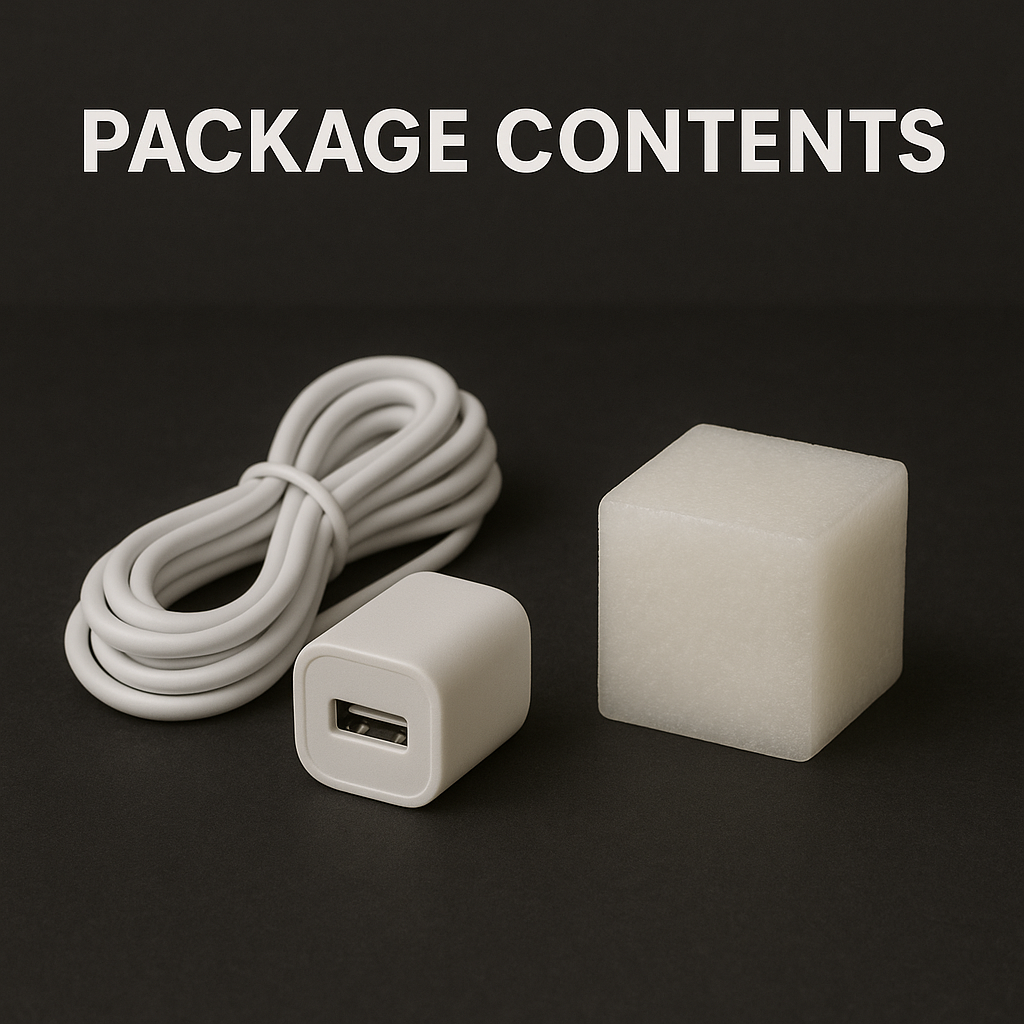
The whole thing runs on a single small board with the color LED built right in. Plug it into any USB-C charger and it comes to life — no wiring, no electronics know-how.
- Built-in RGB LED — nothing to assemble
- Powered by any USB-C cable and charger
- Frosted 3D-printed shell, or run the bare board
- Open hardware — print file lives in the repo
Setup in about a minute
Plug it in, point your phone at it.
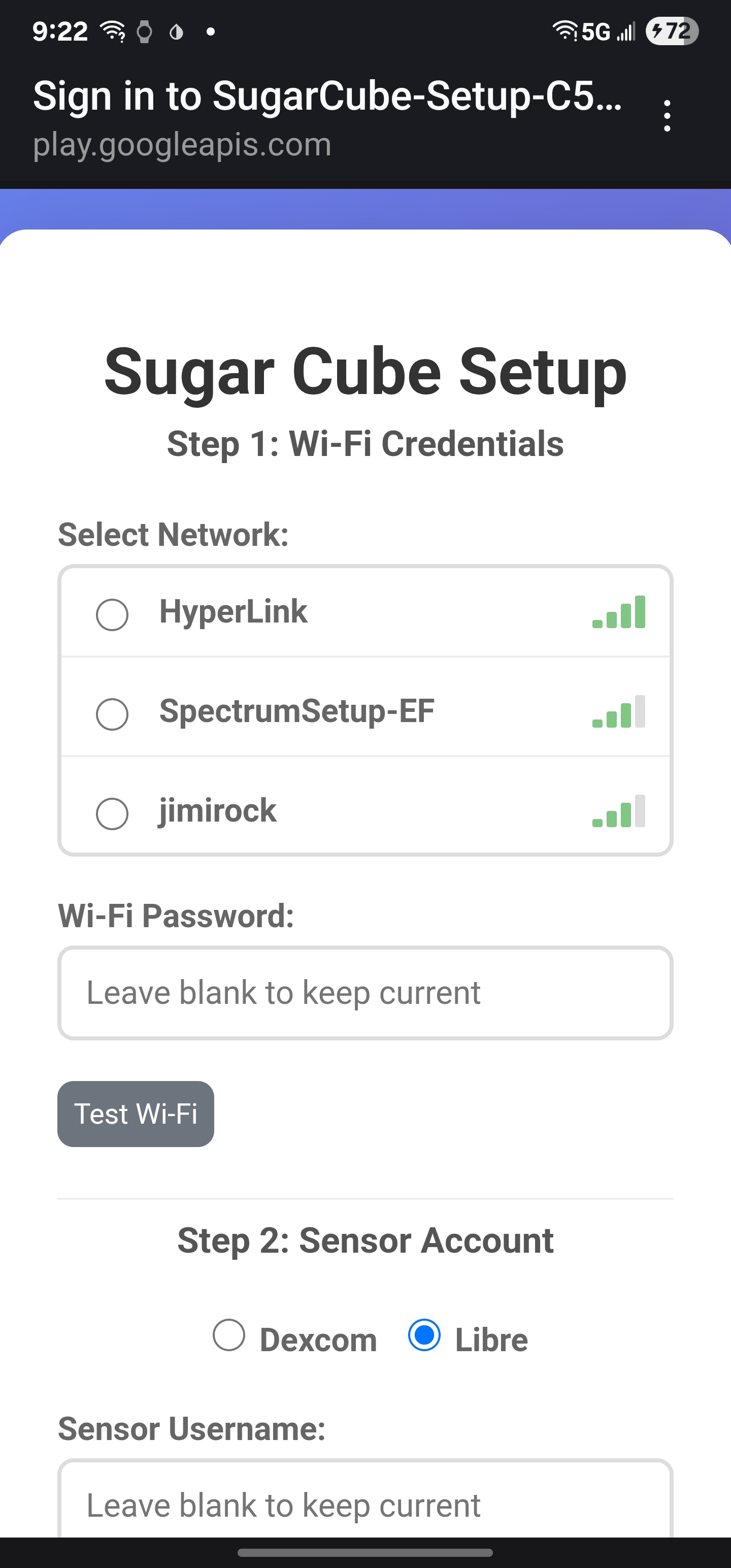
When it powers on, the cube makes its own Wi-Fi and opens a setup page on your phone — the way hotel Wi-Fi pops up.
Yours, and only yours
No cloud. No subscription. No tracking.
Your login is stored in encrypted flash on the cube itself — it never lives on a server of ours.
Reads through Dexcom Share and LibreLinkUp, the same connections the official follow apps use.
No accounts, no monthly fee, no ads. Buy it once, or build your own for free.
Built and tested by hand.
Get a Sugar Cube made for you — one for the kitchen, one for a grandparent's place, one for the dorm. Works with Dexcom and Libre, set up from your phone in a minute, glowing for good. Tell me how many you'd like and I'll reply with pricing and lead time.
Made to order · ask for pricing
Request one Request a kitThe kit: STL files, code, and the parts list to build your own.
From other Sugar Cube homes
Heard something kind?
A few words from people living with one. If Sugar Cube has earned a spot on your counter, I'd love to add yours.
Your customers' words will live here. Until then, this spot is waiting for the first one.
Short, honest notes work best — what it changed for your day or your family.
Send yours with the button below and I'll add the good ones here.
Support
Set it up, keep it glowing.
Everything you need to get going — and what to check if the cube isn't behaving.
Setting up your Sugar Cube
2. On your phone, join the Wi-Fi network named SugarCube-Setup-XXXX — the setup page opens by itself.
3. Pick your home Wi-Fi (it must be 2.4 GHz), enter your Dexcom or Libre login, and adjust the colors if you like.
4. Save. The cube starts glowing with your reading — you're set for good.
What the status colors mean
Getting your Dexcom login
- In the Dexcom app, turn Share on and add at least one follower (Share stays off until one exists).
- If your password is all numbers and login fails, add a letter.
- Outside the US, the cube points at the non-US Dexcom server — that's set in the firmware config.
Getting your Libre login
- In the FreeStyle LibreLink app, add a connection and invite a LibreLinkUp account — it can be you, with a different email.
- Install LibreLinkUp, register with that email, and accept the invite.
- Use that LibreLinkUp email and password during setup.
Troubleshooting
- Won't connect? It only works on 2.4 GHz Wi-Fi.
- Stuck on red? Re-enter your CGM password in setup.
- Not updating? Check that your CGM app is still uploading.
- Can't find the setup network? Unplug it, plug it back in, and try again.
Still stuck? Send me a note or open an issue on GitHub.
Say hello
Order, feedback, or just hi.
Send a note and it lands in my inbox. I read every one.